Elevate sudo privileges using biometrics
Utilises macOS Touch ID instead of typing your password every single time
Overview
This article describes how to enable Touch ID on your Mac to authenticate you for sudo access instead of a password because chances are you’re not the “owner” of your computer.
The concept sudo originated on *nix OSes and is quite similar to an admin account on Windows, loosely speaking. In fact, it stands for SUper user DO as in executing as a root user and normally elevated with a password.
Through this tutorial, you can takes a step further and utilises macOS Touch ID to elevate necessary privileges without typing your password every single time.
Enable elevating privileges using Touch ID
$ sudo vim /etc/pam.d/sudo
auth       sufficient     pam_tid.so
auth       sufficient     pam_smartcard.so
auth       required       pam_opendirectory.so
...- Open your favorite terminal emulator, usually Terminal.app or iTerm.app and open
/etc/pam.d/sudowith any command line editors such as vim or nano - Append the line
auth sufficient pam_tid.sospace-separated to the sudo file - Hit Save (:wq! for vim or ⌃-x then y for nano) to apply all changes
 Enable elevating privileges using TouchID via Vim editor on terminal. Adding pam_tid.so to sudo configuration to elevate privileges using Touch ID.
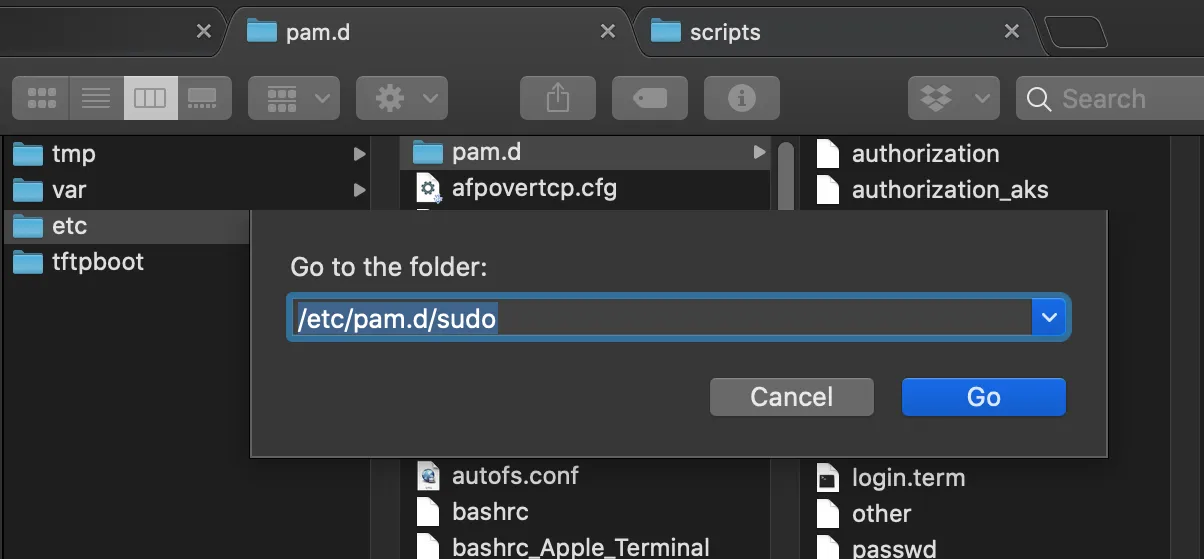
Alternatively, navigate through Finder with ⌘-⇧-G keystrokes then type in the address /etc/pam.d/sudo.
- Right-click and select Get Info
- In Sharing & Permissions section, unlock using your password and grant Read & Write access so you can open it
- Open the file in any editor and append
auth sufficient pam_tid.so - Save and revert Step 2 to ensure the file is Read-only
Results
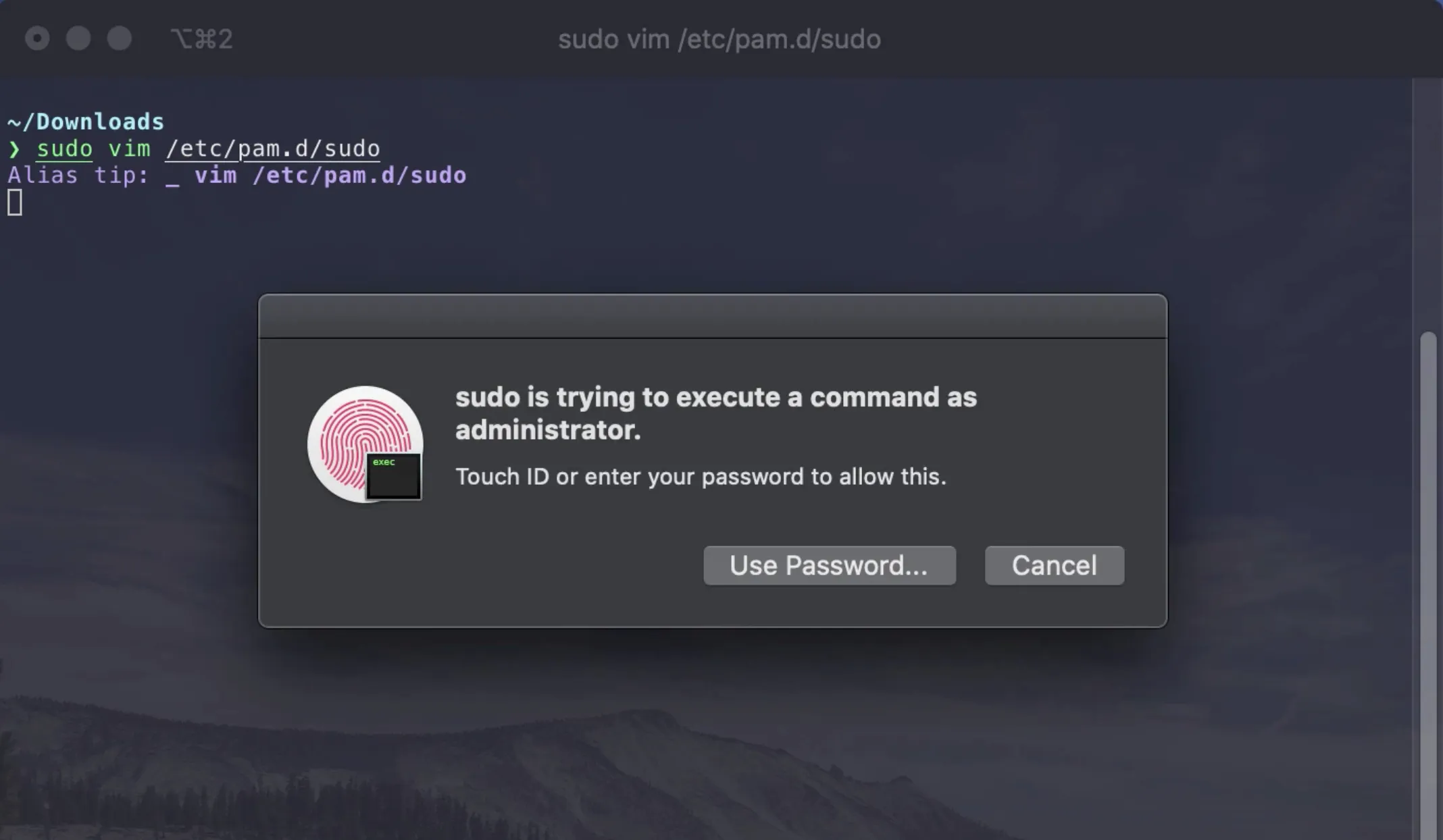
In a new terminal tab/window, whenever executing sudo, it will automatically prompt for Touch ID if you have successfully configured following the previous steps.
Enabled Touch ID allows quick elevation
(Optional) Tmux Setup
The previous result won’t be the same within a Tmux session and require further installation of fabianishere / pam_reattach.
- Install the
pam_reattachmodule with brew - Similar to previous, append
auth optional pam_reattach.soto the sudo authentication file
brew install fabianishere/personal/pam_reattach
sudo vim /etc/pam.d/sudo
auth       optional       pam_reattach.so
auth       sufficient     pam_tid.so
auth       sufficient     pam_smartcard.so
...Troubleshooting (Extra)
- Issues with iTerm2 not working
Make sure that you have enabled successfully, also try built-in Terminal.app to verify it, otherwise open iTerm2 Preferences (⌘-,) → Advanced → Allow sessions to survive logging out and back in and set it to No.
Acknowledgement
This tutorial is based on the answers from this StackExchange thread ↗.